

Most tools that call themselves a "Twitch archiver" are really just Twitch VOD downloaders with a scheduler attached — they wait for Twitch to finish processing a broadcast into a VOD, then go fetch it. That distinction sounds small until the moment it isn't: a crash, a ban, a stream that never gets published as a VOD, or a broadcaster who simply forgot to enable VOD storage all break the "download it after" model completely. TubePull's Stream Archiving add-on, part of TubePull Live, works differently. It records your channel's broadcast while you are live, the same way a local capture card would, except there's no card, no extra machine, and nothing running on your end at all.
Quick start: Stream Archiving is a $3.99/month add-on to TubePull Pro ($4.99/month — $8.98/month total). Connect your Twitch channel and Google Drive once, and every future broadcast is recorded in real time and lands in your own Drive automatically. See the Twitch Archival launch post for the feature announcement, or the Twitch downloader page to set it up.
The core difference: captured live, not fetched later
A VOD-fetching tool has to wait for three things to happen in sequence: your stream ends, Twitch finishes processing the recording, and Twitch publishes it as a VOD. Only then can a downloader see it and pull it. That gap is where things go wrong — a stream that crashes mid-broadcast, a channel where VOD storage was never turned on, or a VOD that gets deleted or DMCA'd before anyone gets to it all leave a fetch-after-the-fact tool with nothing to fetch.
TubePull's Stream Archiving skips that dependency entirely. It subscribes to your channel's stream.online event through Twitch's EventSub webhook system, and the moment that event fires, TubePull's worker starts pulling your broadcast's live HLS segments in real time — the same segments your viewers are watching, joined into an MP4 as the stream plays out. By the time you hit "End Stream," most of the recording is already done; there's no separate VOD-processing wait afterward. If TubePull somehow misses the live event, it falls back to fetching the VOD once Twitch publishes one — but that fallback is the exception, not how the feature is designed to work.
Technical sources: Twitch documents the stream.online EventSub event, and Google documents the Drive upload flow used to place completed files in connected storage.
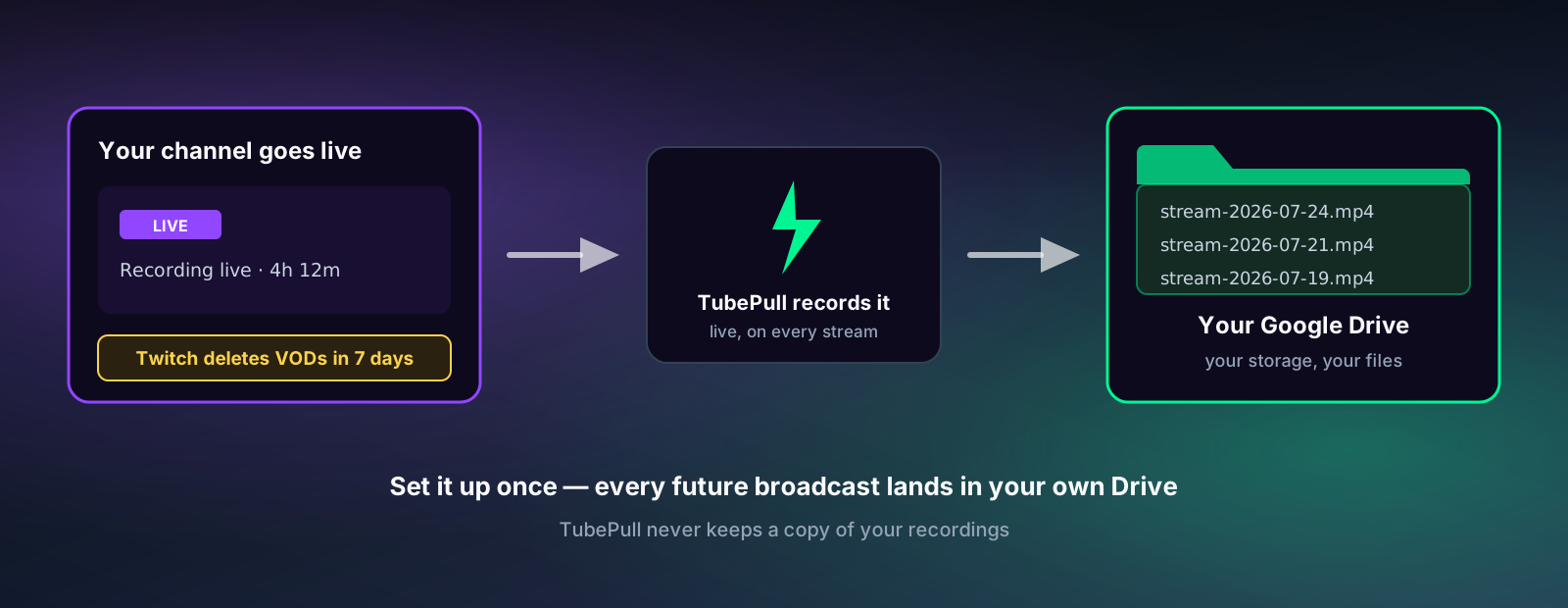
Why does "always captured" matter?
"Always captured" matters because Twitch VODs are not a permanent record — they're on a countdown from the moment your stream ends. Base broadcasters get 7 days, Affiliates get 14, and Partners, Turbo, and Prime subscribers get 60, as we covered in Twitch Clips vs VODs: What Expires, What Doesn't. A recording that only exists as a Twitch-hosted VOD is a recording with an expiration date, full stop.
Recording live closes that gap before it opens. Since TubePull is writing the MP4 as your broadcast happens, the archive exists in your own Google Drive independent of whatever Twitch does with the VOD afterward — whether it publishes on schedule, publishes late, or (for any reason) doesn't publish at all. You're not racing a timer you can't see; the copy that matters is already yours by the time the stream ends.
Use case: no extra hardware, no performance hit
Local capture is the traditional answer to "I want a backup of my stream," and it works, but it isn't free. Running OBS's built-in local recording — or a second encoder, or a capture card feeding a second machine — adds encoding load to the same box that's already running your game and your stream encode. On a single-PC streaming setup, that's a real frame-rate cost during exactly the moments (raid trains, big moments, high-action gameplay) when you can least afford it. A dedicated second machine solves the performance problem but adds cost, setup, and one more thing that can fail mid-broadcast.
TubePull's Stream Archiving runs entirely on TubePull's infrastructure, pulling your stream's HLS segments the same way a viewer's player does — nothing installs on your streaming PC, nothing competes for your CPU, GPU, or disk I/O, and nothing changes about your OBS scene collection or encoder settings. You could archive every future broadcast without ever touching your streaming setup again.
Use case: capturing mobile and on-the-go streams
Mobile streaming — from the Twitch app itself, from a phone rig at a convention floor, from a car during a road trip stream — is exactly the scenario where local recording tools don't apply at all. There's no OBS running on a phone, no capture card, no laptop to also be recording a local file. If you only have the Twitch mobile app open and hit "go live," a local-recording safety net simply isn't an option.
Because Stream Archiving is triggered by your channel's stream.online event rather than by anything running on the broadcasting device, it doesn't care whether you went live from a gaming PC, a phone, or a hardware encoder at a booth. The moment your channel shows live on Twitch, the archive job starts, regardless of what hardware or app produced that broadcast.
Use case: unattended and multi-person channels
Community and team channels often have broadcasts that nobody is specifically responsible for babysitting — a co-streamed event, a guest host, a scheduled charity stream where the person running OBS isn't the same person who'd remember to hit "start recording" on a second box. Stream Archiving doesn't require anyone to remember anything per broadcast. Once it's connected to a channel, it runs on every future stream from that channel automatically, independent of who's at the keyboard that day.
What gets recorded and how it's assembled
Twitch serves live video the same way it serves VODs afterward: HLS, chunked into short .ts segments behind a playlist, at several quality tiers from 160p up to source (1080p60 for partnered channels). TubePull's worker resolves the playlist for your channel's live broadcast, pulls the source-quality segments in order as they become available, and joins them server-side into a single clean MP4 — the same segment-join pipeline TubePull uses for on-demand VOD downloads, just running continuously against a live playlist instead of a finished one. Twitch ships these as muxed streams, video and audio already interleaved in one track, so there's no separate audio sync step.
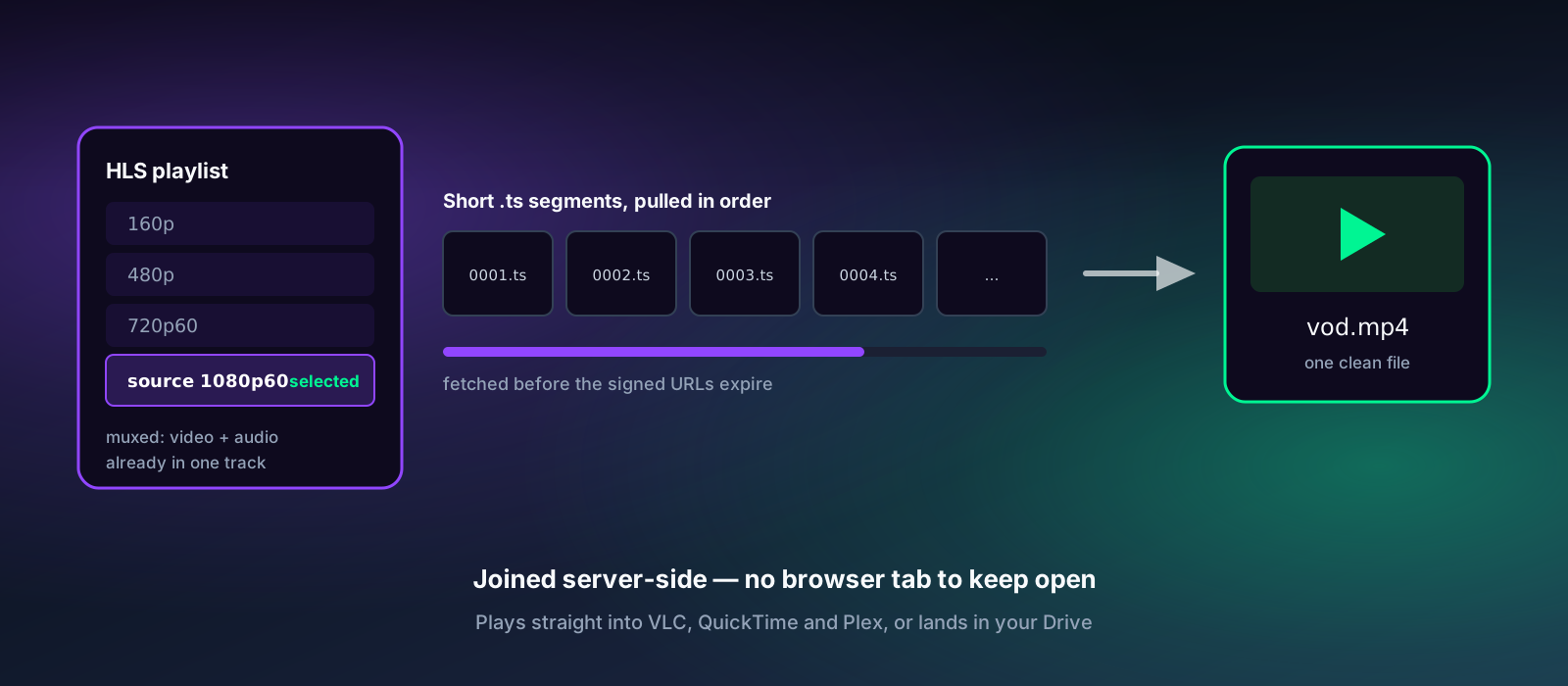
.ts segments. TubePull pulls them in order before their signing tokens expire and joins them server-side into one MP4.Each archive captures up to 12 hours per broadcast — enough for a marathon stream or a subathon segment — and the finished MP4 lands in a dedicated TubePull folder in your own Google Drive, not on a TubePull-owned server. That last part matters as much as the live-capture timing: the file goes straight from Twitch's CDN to your Drive, so it's yours regardless of what happens to your TubePull subscription, your storage plan, or TubePull itself down the line. Most hosted "stream archive" competitors do the opposite — they record to their own proprietary cloud and dangle "permanent" storage as the pitch, right up until you cancel or hit a plan cap.
Pulling shorter cuts from a VOD with Clip Range
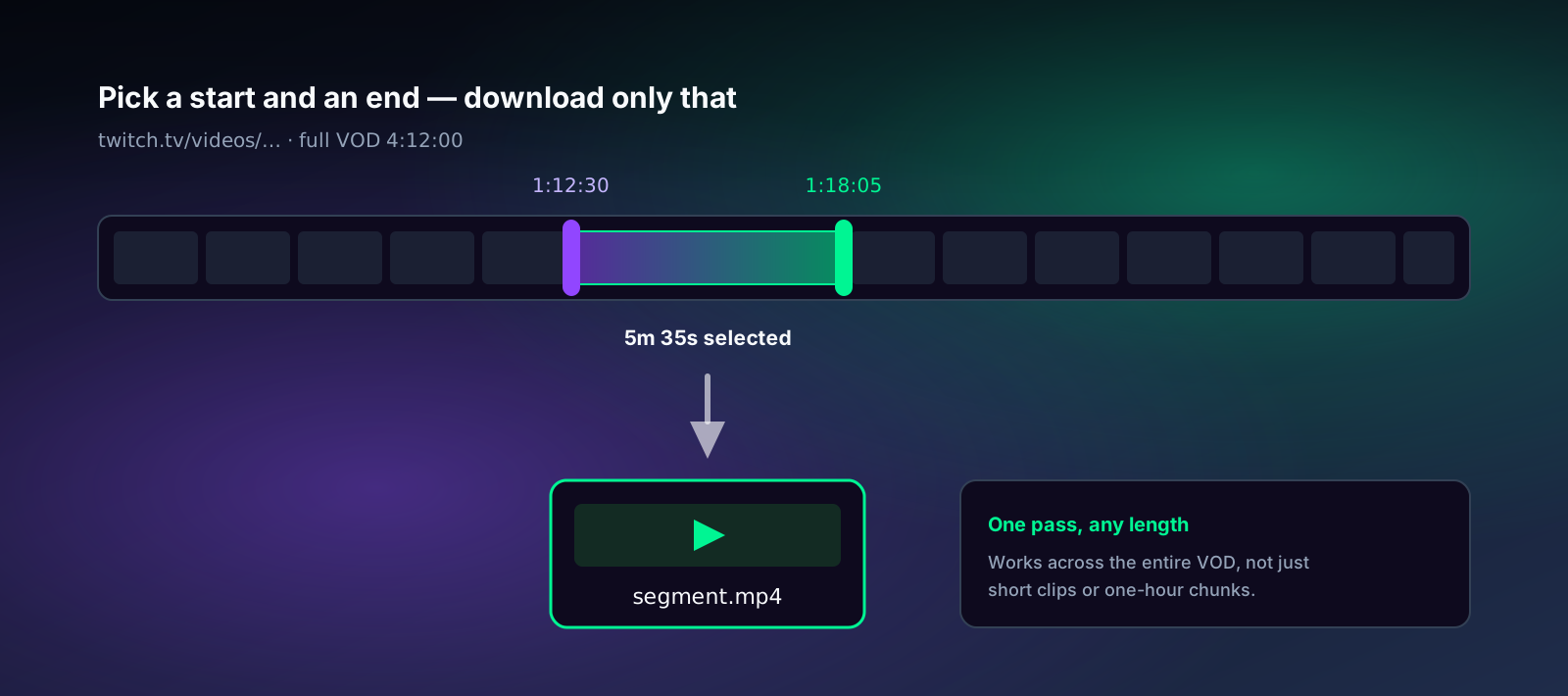
An archive that only exists as one long file isn't always what you want to work with. TubePull's Clip Range tool solves that at download time: paste a Twitch VOD URL into a Pro manual download, set a start and end timecode, and TubePull pulls just that segment — the clutch play, the guest interview, one song from a DJ set — as its own MP4, without downloading the full broadcast first. This works across the entire length of a VOD in one pass, not just the first hour the way some competing tools cap it. Clip Range runs on the VOD's Twitch URL, not on a file already sitting in your Drive — if you want a shorter cut of something Stream Archiving already archived, pull the original VOD's URL (while it's still live on Twitch) through Clip Range, or trim the archived MP4 locally with a video editor or FFmpeg.
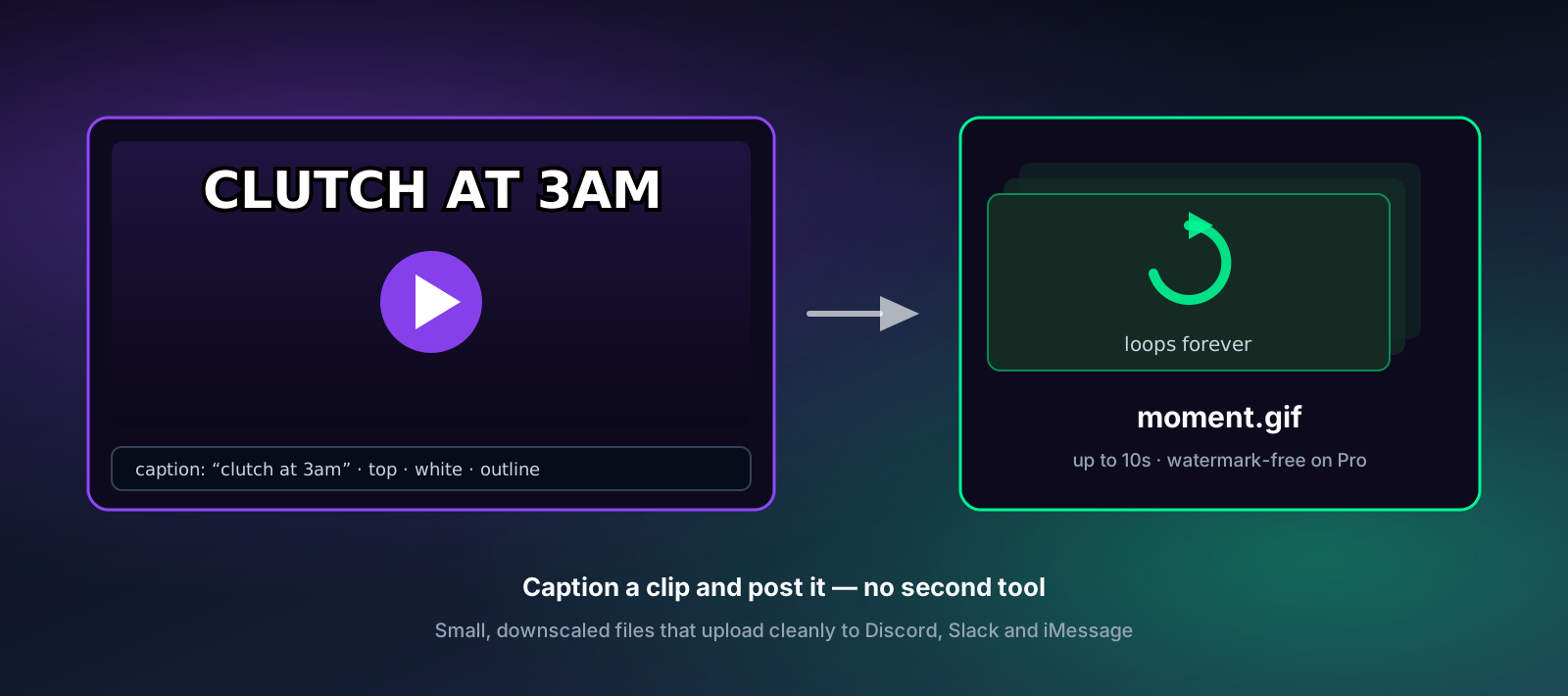
For shorter social-ready cuts, TubePull's meme GIF exporter turns any moment from a clip or VOD into a captioned, looping GIF — pick your window, type a caption, and download something ready to post to Discord or group chats without a second app in the workflow.
What live capture doesn't cover
Recording live is not a guarantee against every failure mode, and it's worth being direct about the edges:
- The event has to reach us. Archiving starts when your channel's
stream.onlineevent arrives. If that event is missed for some reason, TubePull falls back to fetching the published VOD — which brings back the same timing dependency live capture is designed to avoid. - 12 hours per broadcast. A marathon or subathon stream is archived up to that mark, not end to end. Manual downloads of the published VOD are free for up to one hour of output; Pro removes the length cap if you need the rest.
- Chat and emotes aren't captured. TubePull records video and audio, not the chat log. A dedicated chat-export tool is the right complement if chat history matters to you.
- Sub-only content stays gated. Subscriber-only VODs and clips require an authenticated Twitch subscription at Twitch's edge, which applies the same whether content is fetched live or after the fact.
How TubePull fits in
Stream Archiving is a $3.99/month add-on to TubePull Pro ($4.99/month — $8.98/month total), and it's built for people who need dependable Twitch archival without a large, complicated creator suite. Connect your Twitch channel and Google Drive from your account settings, and every broadcast from that point forward is recorded as it happens and delivered to storage you already control. If you just need one specific VOD or clip right now rather than ongoing archiving, the Twitch downloader page handles it on demand: public manual downloads are free for up to one hour of output, with 3 downloads per 24 hours. Pro removes both limits.
Disclaimer. Please archive only content you own or have permission to save — your own broadcasts, streams you manage for a client or team, or events you're authorized to preserve. TubePull does not grant rights to copy, distribute, or reuse third-party content, and you are responsible for ensuring your use complies with Twitch's Terms of Service and applicable copyright law.
More Twitch guides
- Never Miss a Stream: Twitch Archival Is Now on TubePull — the feature launch and pricing
- Archive Twitch Clips and VODs — Before the 14-Day Timer Runs Out — the manual archival workflow
- Twitch Clips vs VODs: What Expires, What Doesn't, and How to Save Both — the retention rules, tier by tier
- Download Twitch VODs and clips with TubePull — the Twitch downloader page